Lenzic
Optometry clinic booking with QR—fewer calls, clearer desk
Let patients book via QR or link; reception sees status in one place. Verify appointment-to-check-in in a live demo.
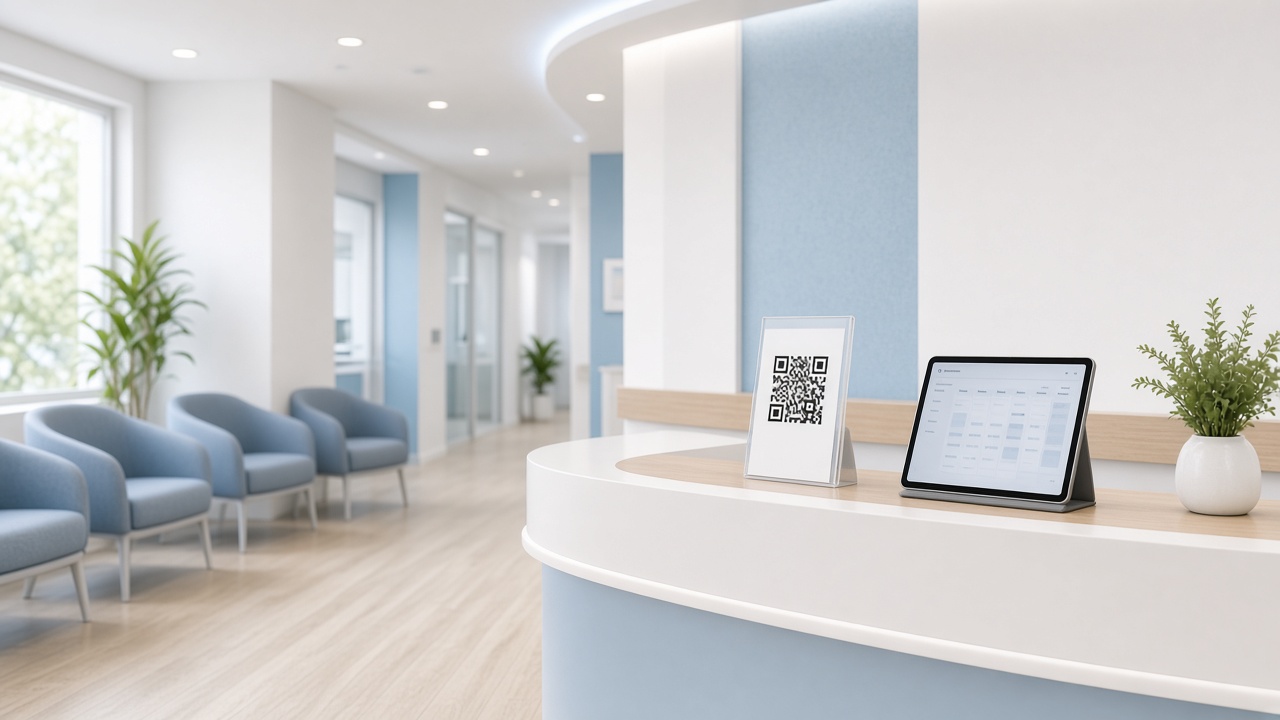
It’s 10 a.m. and the third caller asks the same thing: “Do you have a slot?” Reception has one eye on WhatsApp, one on the phone, one on a paper diary—and still isn’t sure yesterday’s verbal booking was saved. The problem usually isn’t “we need more software features.” It’s that appointments still live in chat instead of one shared queue.
This is for clinic managers and reception leads in optometry—not people shopping for glasses. It continues From WhatsApp booking chaos to online appointments, and zooms in on one tool: a patient QR or booking link.
Want to see it live? Request a free demo. For the wider buy decision, keep the buyer’s guide handy. If you also run a gallery: clinic + gallery in one cloud.
Why the desk gets the same calls over and over
Before QR, three things pile up. Patients can’t see open slots easily, so they call. Several people reply at once and times collide. After a verbal “you’re booked,” tomorrow brings another confirmation call because the system never showed a clear status.
If your main queue still lives in WhatsApp, start with the article above. QR only helps when you’re ready to pull booking out of chat.
What a QR or link actually changes
The patient scans the QR (or opens the link), sees the clinic’s booking page, picks a time, and reserves. Reception stops retyping from a chat screenshot and reads the same appointment in the schedule.
In practice, returning patients ask “any openings?” less often, wrong times from parallel channels drop, and the desk depends less on one person’s memory. What we don’t promise: zero phone calls, or zero no-shows. The right bar is simpler—traceable appointments and a clear status for the desk.
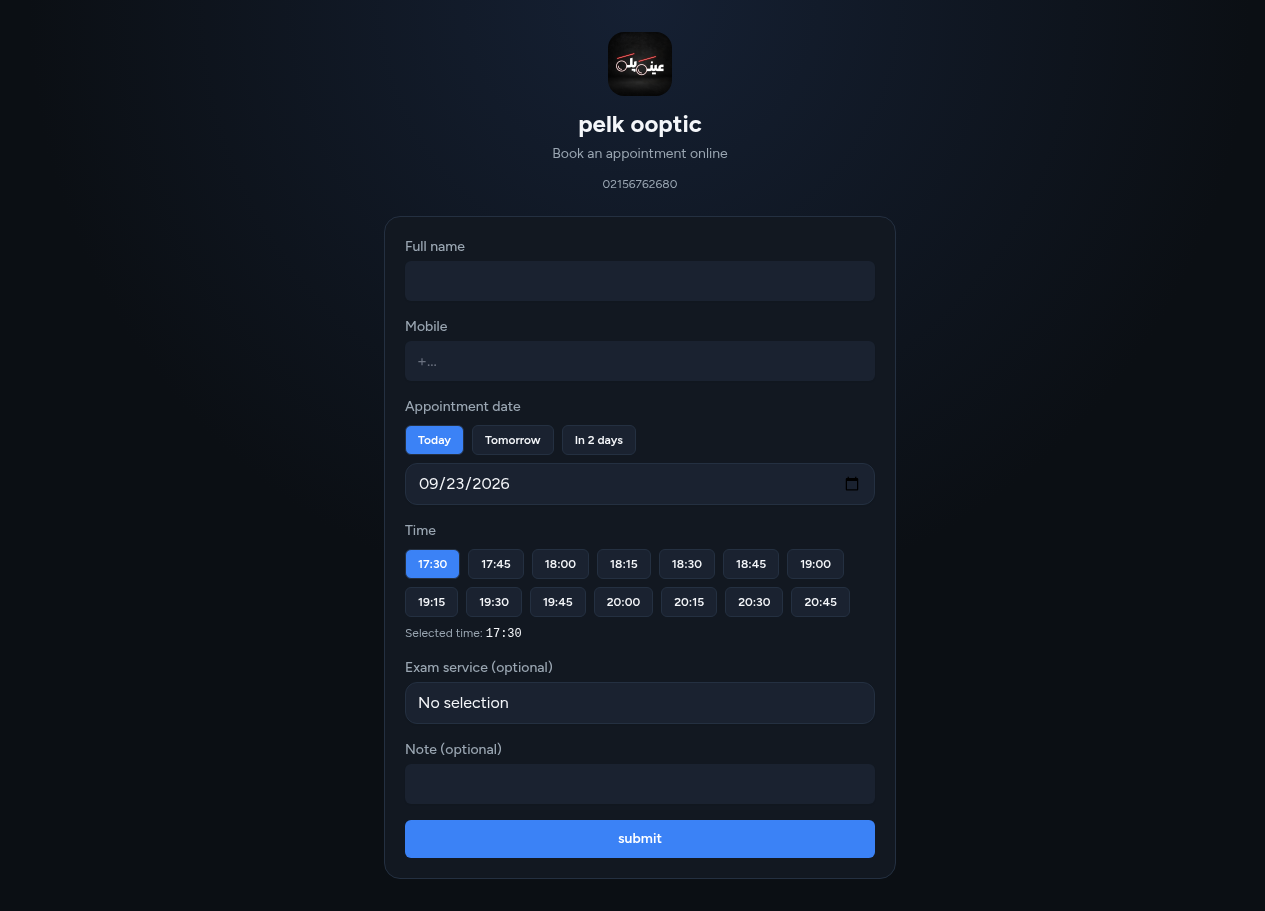
After a booking, what should reception see?
Ask for this live in the demo, not on slides. How does the new booking appear, and with what status? Who can cancel or reschedule—patient, staff, or both? How do you close a no-show? If you have more than one location or calendar, do the queues stay separate?
The buyer test is blunt: can the desk answer “who is due today?” from the system, not from a WhatsApp photo?
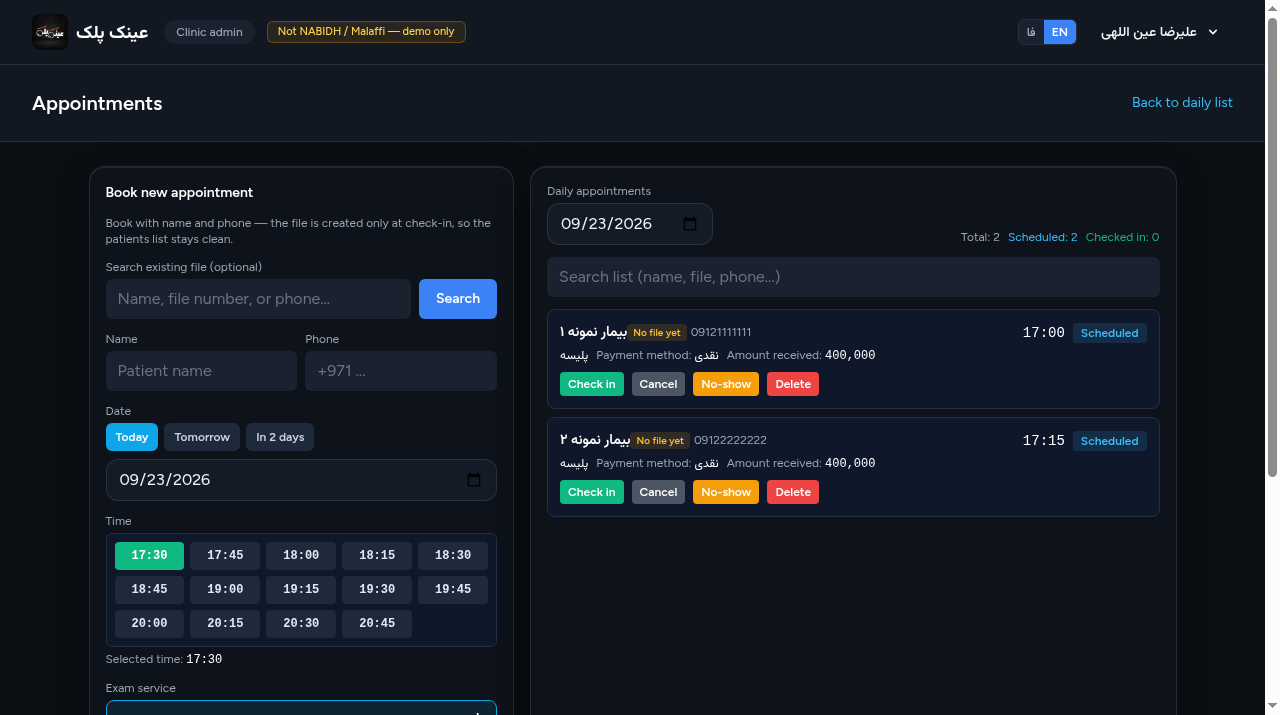
One product fact that matters: reserved now, chart at check-in
See this in the demo. The appointment is reserved—a firm time on the calendar. The full chart opens at check-in, not when the booking is created.
Why it matters for QR: self-serve booking raises volume. If every reservation instantly builds a full chart, the desk fills with half-finished files. QR should calm the queue, not flood it.
If QR volume rises and every reservation builds a full chart, the desk floods—verify the rule in Patient chart opens at check-in.
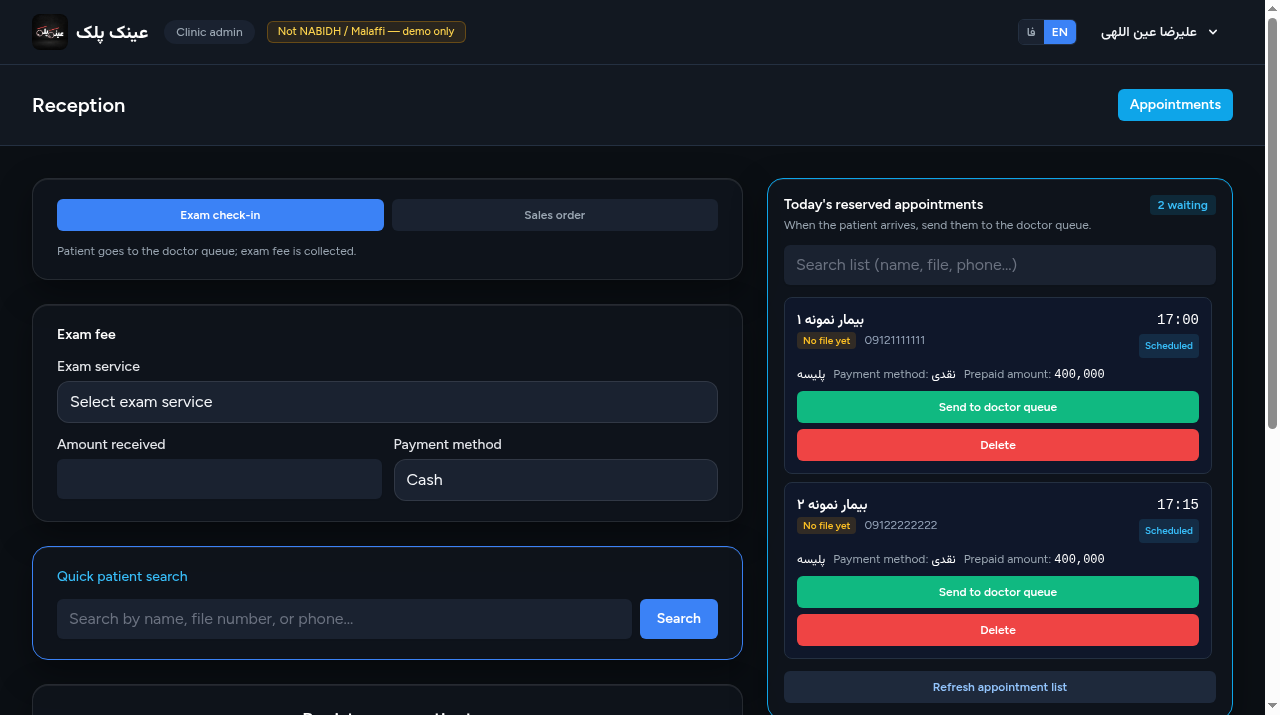
Where the link and QR live
In online-booking settings you’ll find the short public link and a printable QR for the desk or storefront. Share that with returning patients or your message list.
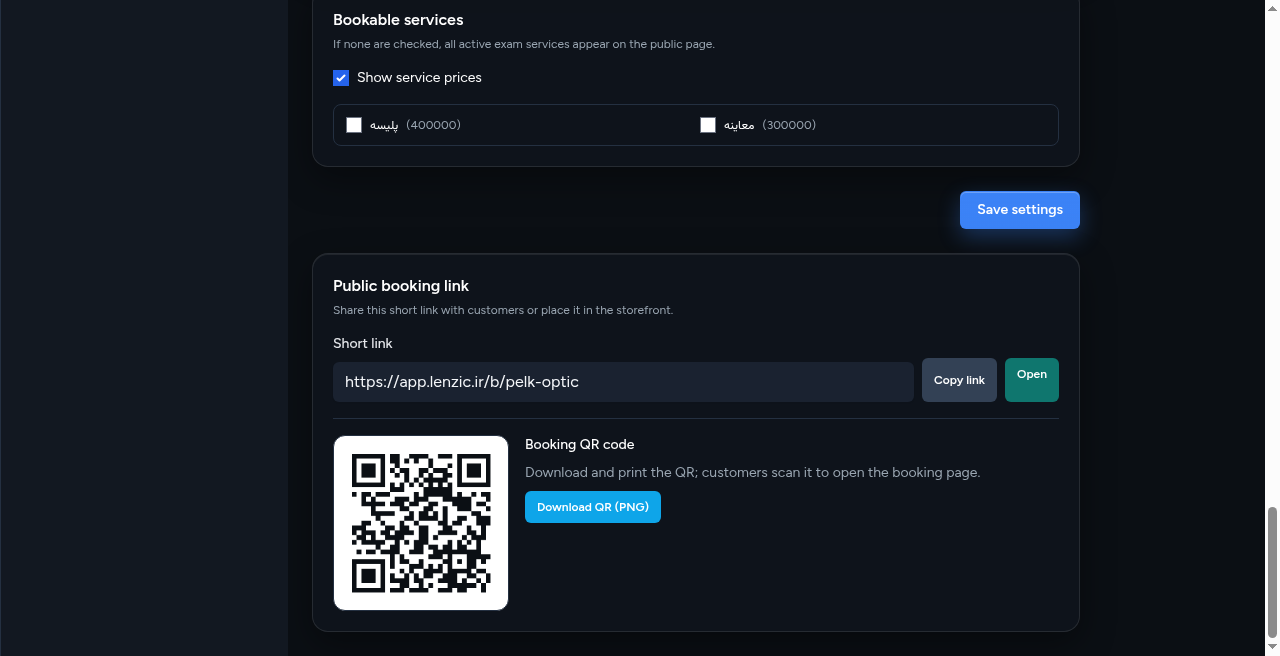
Don’t force everyone onto QR overnight
It usually fails. Week one: still answer calls, but log every appointment in the system. Next: open the link or QR for returning patients. Once it sticks, keep WhatsApp for exceptions and let the main queue live in software. Success looks like fewer “when do I come?” messages and a clearer desk—not deleting chat on day one.
Three questions to ask in the demo
Show the patient QR or link now—how long from scan to booked slot? From booking to check-in, when does the chart open? If you have a gallery, how does booking connect to the sale path?
Then open getlenzic.com and request a demo. Contact: /contact.
If one line sticks: QR pays off when patient self-serve lands in the reception queue—and the chart stays closed until check-in. Start the demo with “QR to check-in,” not a feature deck.